
SharePoint Spreadsheet Access
The individually shared spreadsheet is managed by the Commission and the data will be updated annually by the LEA grantee lead during the life of the grant.
Do not create and share a new spreadsheet with the Commission — it will not be reviewed.
Troubleshooting and Frequently Asked Questions
The grant lead has been given editing access to the specific spreadsheet that has been customized to the approved grant. This is a live spreadsheet through Microsoft. This is where all the data is submitted.
How to access Data Reporting Spreadsheet
To access the spreadsheet, click the link shared in the email.
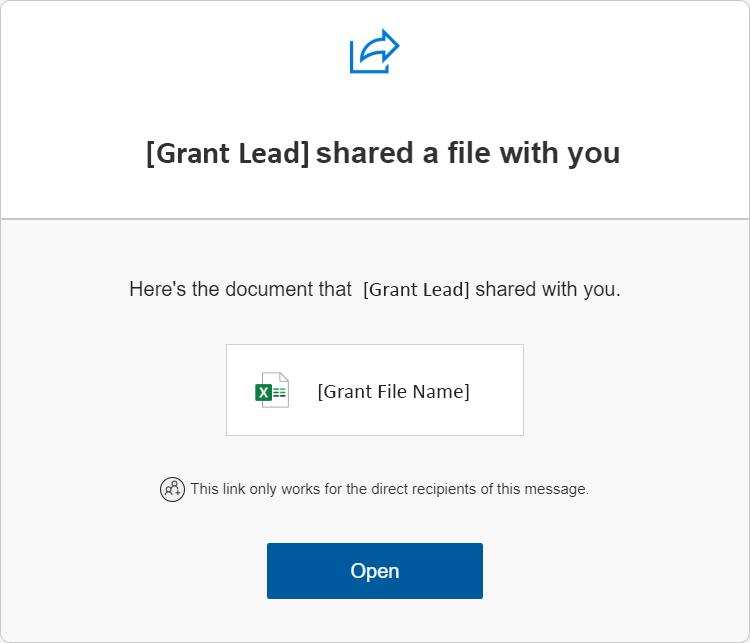
Step 2:
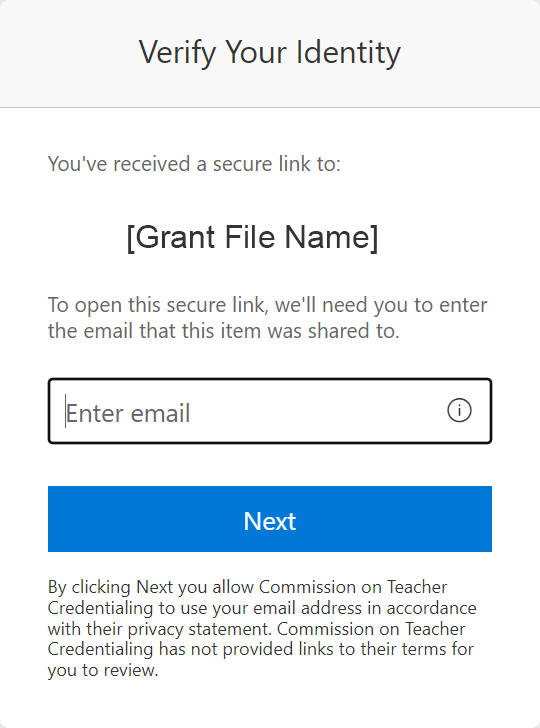
This message will appear in your browser.
It will show the grant file name.
Enter the email you used to request access. Then click, “Next.”
Step 3:
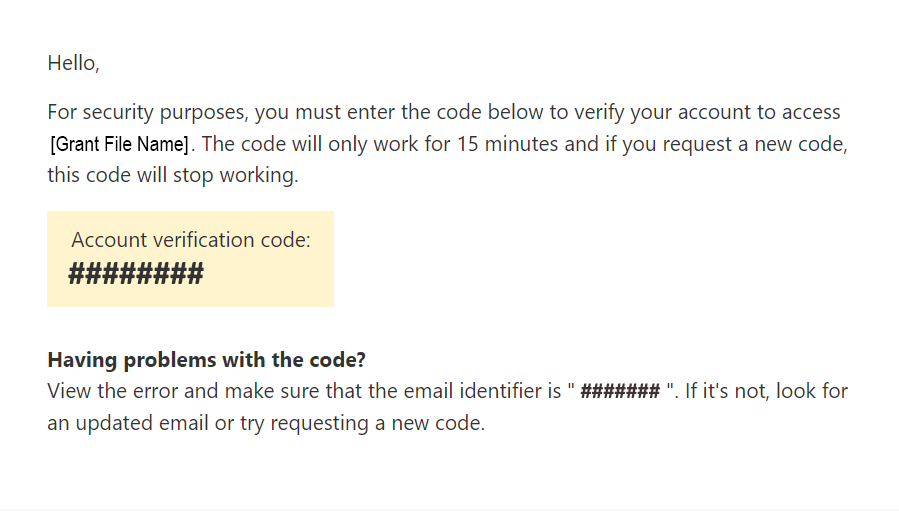
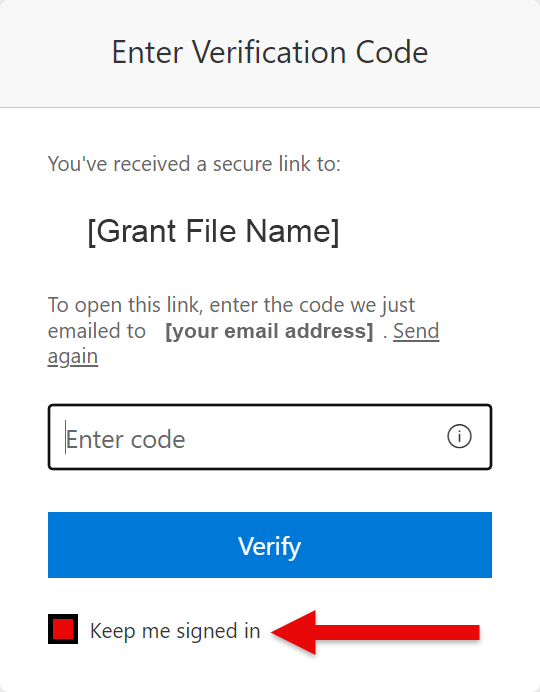
After entering your email address, you will receive a verification code.
In case it doesn’t arrive, check your SPAM/JUNK folder.
If it still doesn’t arrive, check with the LEA’s IT team, as some stringent anti-spam systems in place may reject an incoming email without a valid mx record for the domain.
Sharepointonline.com is missing a valid mx record and if the provider (temporarily) disables the MX record requirement, the verification code will arrive.
Step 4:
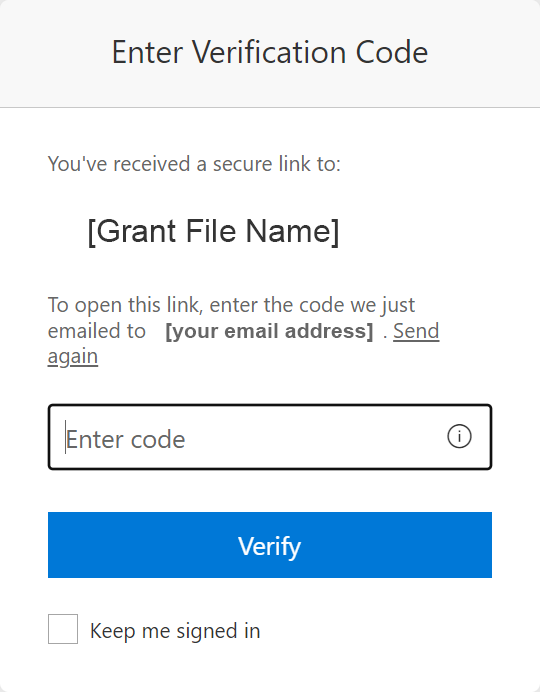
Enter the verification code into the browser.
The spreadsheet should now be accessible through your browser.
You do not need an Excel license.
I cannot find my verification code
After entering your email address, you will receive a verification code.
In case it doesn’t arrive, check your SPAM/JUNK folder.
If it still doesn’t arrive, check with the LEA’s IT team, as some stringent anti-spam systems in place may reject an incoming email without a valid mx record for the domain.
Sharepointonline.com is missing a valid mx record and if the provider (temporarily) disables the MX record requirement, the verification code will arrive.
Why am I repeatedly asked for a verification code?
I cannot find my Data Reporting link
If you’re unable to locate the link to your spreadsheet, please contact the appropriate email address for your grant:
Classified School Employee Teacher Credentialing Program:
ClassifiedGrants@ctc.ca.gov
Diverse Education Leaders Pipeline Initiative:
DELPIGrant@ctc.ca.gov
Integrated Undergraduate Teacher Preparation Grants:
IntegratedGrants@ctc.ca.gov
Computer Science Supplementary Authorization Incentive Grant Program:
CSGrant@ctc.ca.gov
Reading and Literacy Supplementary Authorization Incentive Grant Program:
ReadLitGrant@ctc.ca.gov
School Counselor Residency Grant Program:
SchoolCounselorResGrants@ctc.ca.gov
Teacher Residency Grant Program:
TeacherResGrants@ctc.ca.gov

Commission on Teacher Credentialing
651 Bannon Street
Sacramento, CA 95811