
Request to Change Your Identity Information
Educators that need to update Name, Date of Birth, Social Security Number (SSN), or Individual Tax Identification Number (ITIN) must submit the request online through the secure Educator Credentialing System (ECS).
IMPORTANT:
The following personal information cannot be changed using the ECS System:
- Email Address
- Phone Number
- Mailing Address
- Last Known County of Employment
- Self-Identification (i.e., gender identity, ethnicity heritage, and sexual orientation)
To update this information, you must follow the steps on the Update Information webpage.
Link your CTC Online Account with the new Educator Profile: Identity Information Change Request Portal
To submit a request to change your name or identity information on file with the Commission, you will first need to gain access to ECS. If you have not yet linked your current CTC Online Account with ECS, please complete the steps below:
How to Connect to ECS
**Please note, in order to complete this process, you must have an existing CTC Online Account.
2. Then, click either** the Microsoft or Google Gmail icon.
**Please Note: It is strongly encouraged that individuals use a personal email address in lieu of a work email address to ensure continued access to their ECS account. If you do not currently have either email address accounts (Microsoft or Google), then you must create one.

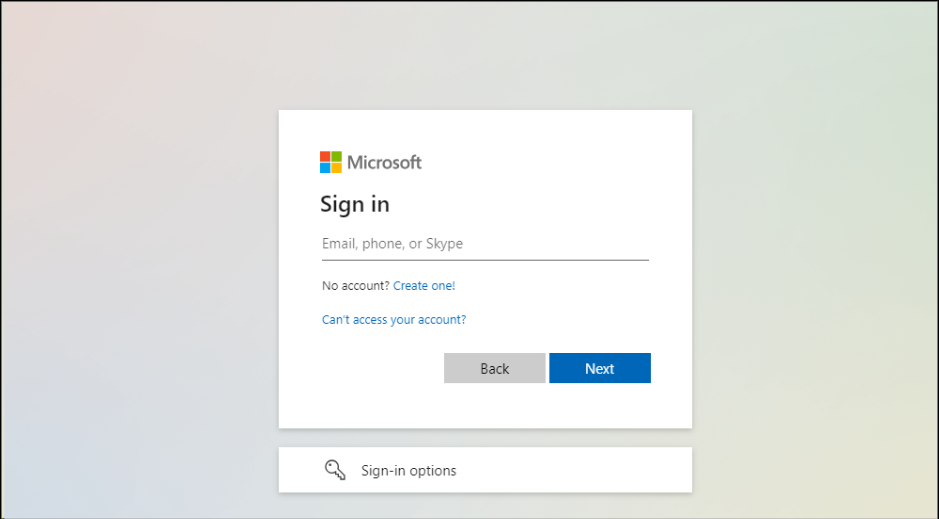
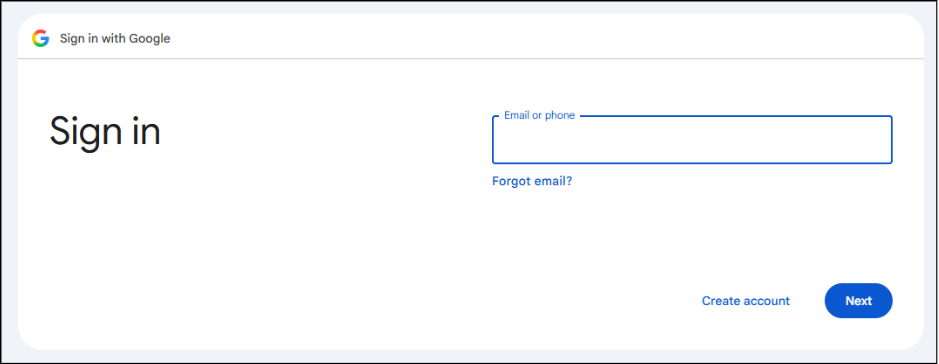
3. After successfully signing into your email address account, you will then be asked if you hold a CTC Online account.
-
- If you do hold an existing CTC Online account, then select “Yes“
- If you do not hold an existing CTC Online account, you must create an educator account with CTC Online before you proceed.
**Please Note: Selecting “No” in this step will direct you to CTC Online to create your CTC Online account.
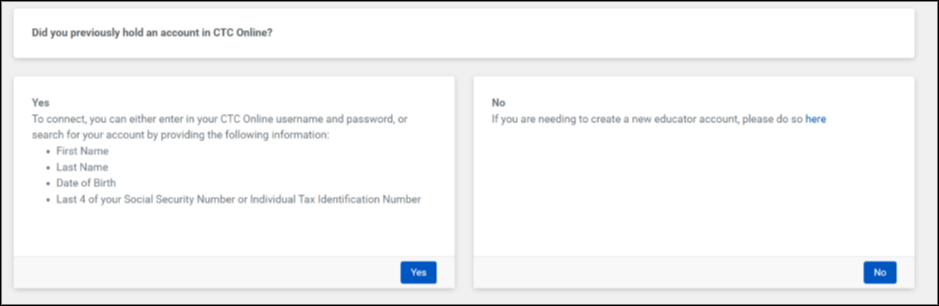
4. Upon selecting “Yes”, you will then be prompted to search for your account profile information through one of the following options:

Option 1 (Preferred): Search with CTC Online account profile
-
- Enter your User ID and password that you use to log into CTC Online
-
-
- Information regarding locating your User ID and password for CTC Online can be located on the How to Log In webpage.
-
Option 2: Search for Account
-
- Enter your first name, last name, date of birth, and last 4 of your Social Security Number/Individual Tax Identification Number (ITIN) as it currently appears in the Commission’s records.
-
-
- If you receive the following error message, please confirm the information you typed in is correct. If the information is correct, please stop, and contact the Commission’s Division of Licensure Certification for further assistance.
-

Please Note, after three unsuccessful “Search” attempts, your account will be locked for 24 hours.
5. Once your profile is successfully located, a window will appear to verify account information.
-
- If the information displayed is correct and matches what the Commission currently has on file for you, click the green “Confirm” button to proceed.
- If the information displayed is incorrect and does not match what the Commission currently has on file for you, click the gray “Cancel” button and contact the Commission’s Division of Licensure Certification for assistance.

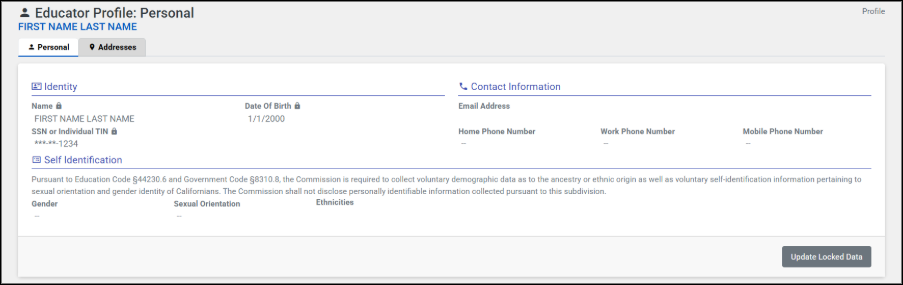
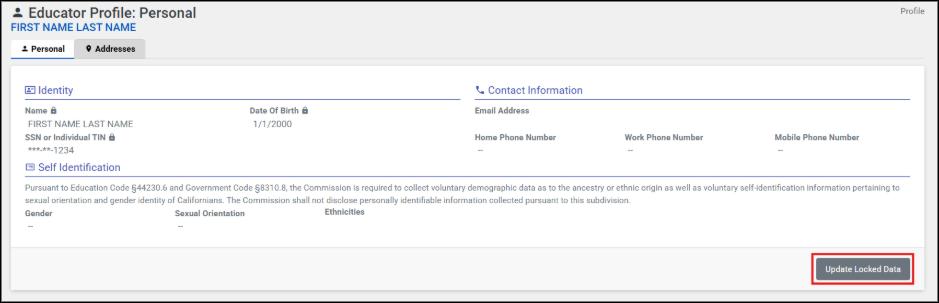
6. Once you have confirmed your information, the “Educator Profile: Personal” page should appear.
Note: This page confirms that your CTC Online account and ECS account have been successfully linked together.
How to Submit a Request to Change your Identity Information
Per Title 5 California Code of Regulations §80002, educators are required to always have their full legal names and information on file with the Commission. To update or correct your identity information, you will need to select the appropriate option(s) and include all corresponding supporting documentation related to the change, as shown in the dropdowns below:
Please Note: You may select more than one change per submission request as needed (e.g. request for name change and date of birth). You must provide all of the corresponding required documentation and ensure they are correctly uploaded before the change request can be submitted.
Name Change due to Marriage

4. Type in the “Requested Change” within the respective boxes.
-
- Please only type in the areas you are changing. (e.g., if you are only changing your first name, please complete the “First Name – Requested Change” box. Leave the “Middle Name” and “Last Name” sections blank)


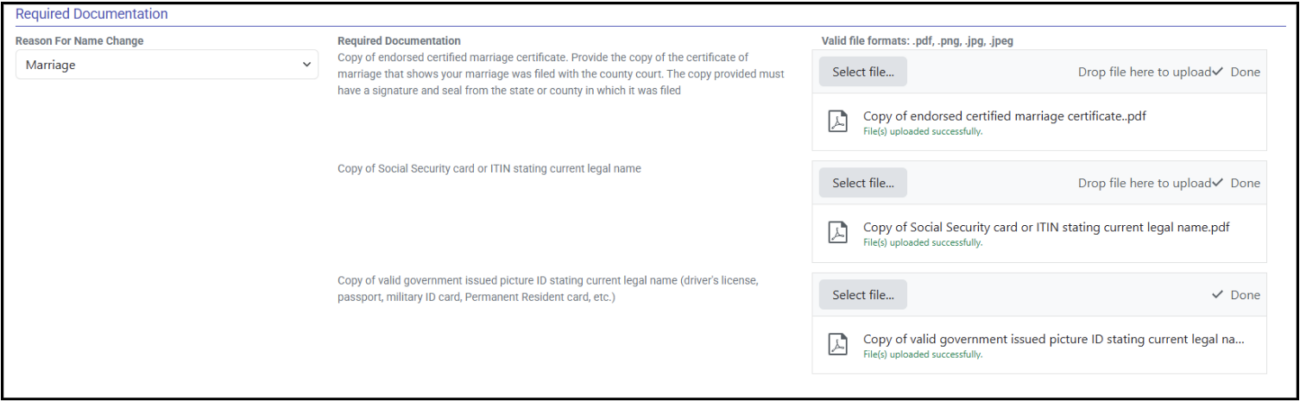
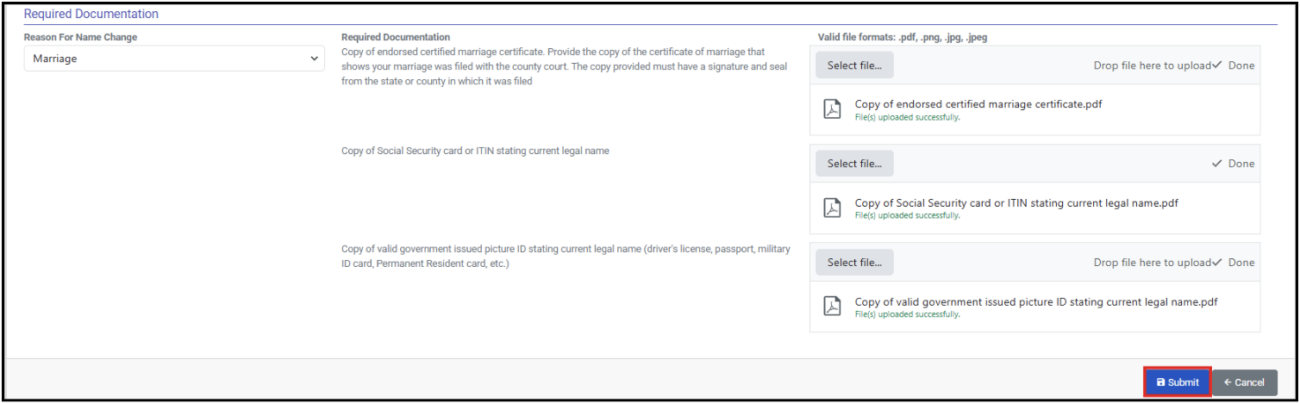
6. Upload all corresponding supporting materials in the “Required Documentation” section through either the “Select File” option, or by dragging and dropping the documentation.
-
- Copy of endorsed certified marriage certificate.
- Provide the copy of the certificate of marriage that shows your marriage was filed with the county court.
- The copy provided must have a signature and seal from the state or county in which it was filed
- Copy of Social Security card or ITIN stating current legal name
- Copy of valid government issued picture ID stating current legal name
- driver’s license, passport, military ID card, Permanent Resident card, etc.
- Copy of endorsed certified marriage certificate.
Please Note: These documents must be in the following valid file formats: pdf, .png, .jpg, .jpeg.

Name Change due to Superior Court
4. Type in the “Requested Change” within the respective boxes.
-
- Please only type in the areas you are changing. (e.g., if you are only changing your first name, please complete the “First Name – Requested Change” box. Leave the “Middle Name” and “Last Name” sections blank)

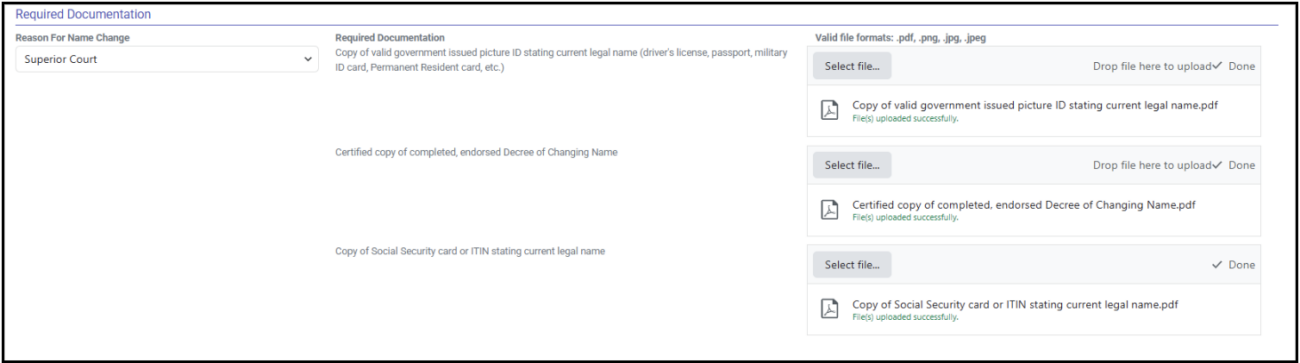
6. Upload all corresponding supporting materials in the “Required Documentation” section through either the “Select File” option, or by dragging and dropping the documentation.
-
- Copy of valid government issued picture ID stating current legal name
- (driver’s license, passport, military ID card, Permanent Resident card, etc.)
- Certified copy of completed, endorsed Decree of Changing Name
- Copy of Social Security card or ITIN stating current legal name
- Copy of valid government issued picture ID stating current legal name
Please Note: These documents must be in the following valid file formats: pdf, .png, .jpg, .jpeg.
7. Once all sections have been completed and all required documentation has been uploaded, you may submit your change request by selecting the blue “Submit” button in the bottom right-hand corner.
-
- If you do not complete the form in its entirety, you will receive a red banner with the error message “You have errors on your form!”. This message will list the sections that need completing.

Name Change due to Dissolution of Marriage
4. Type in the “Requested Change” within the respective boxes.
-
- Please only type in the areas you are changing. (e.g., if you are only changing your first name, please complete the “First Name – Requested Change” box. Leave the “Middle Name” and “Last Name” sections blank)

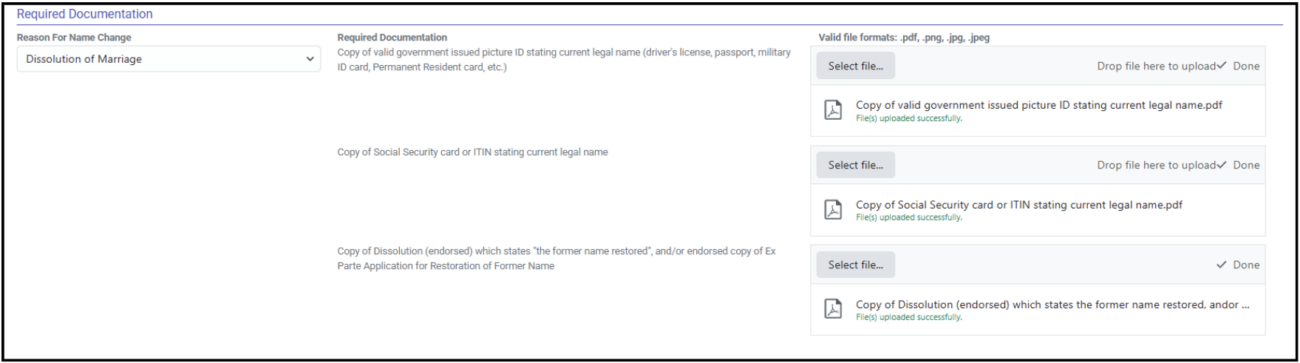
6. Upload all corresponding supporting materials in the “Required Documentation” section through either the “Select File” option, or by dragging and dropping the documentation.
-
- Copy of valid government issued picture ID stating current legal name
- (driver’s license, passport, military ID card, Permanent Resident card, etc.)
- Copy of Social Security card or ITIN stating current legal name
- Copy of Dissolution (endorsed) which states “the former name restored”, and/or endorsed copy of Ex Parte Application for Restoration of Former Name
- Copy of valid government issued picture ID stating current legal name
Please Note: These documents must be in the following valid file formats: pdf, .png, .jpg, .jpeg.
7. Once all sections have been completed and all required documentation has been uploaded, you may submit your change request by selecting the blue “Submit” button in the bottom right-hand corner.
-
- If you do not complete the form in its entirety, you will receive a red banner with the error message “You have errors on your form!”. This message will list the sections that need completing.

Name Change due to Citizenship
4. Type in the “Requested Change” within the respective boxes.
-
- Please only type in the areas you are changing. (e.g., if you are only changing your first name, please complete the “First Name – Requested Change” box. Leave the “Middle Name” and “Last Name” sections blank)

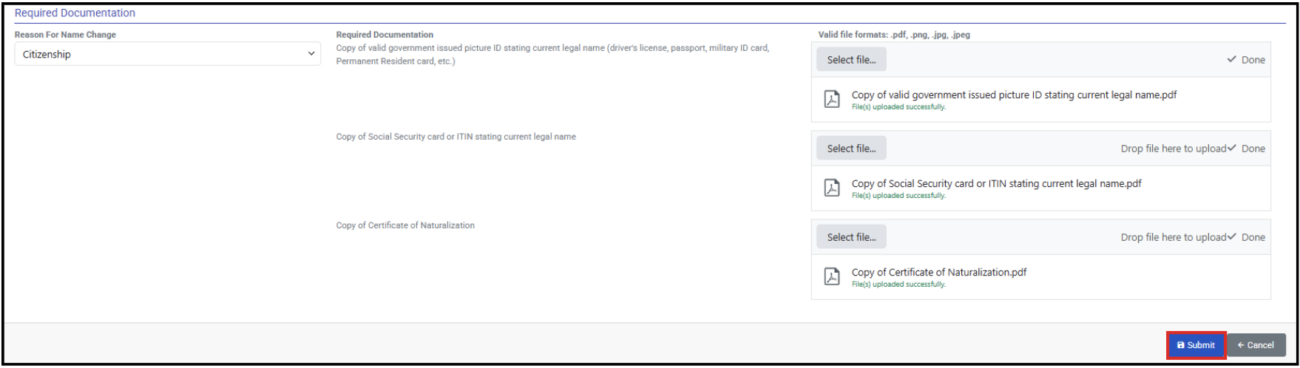
6. Upload all corresponding supporting materials in the “Required Documentation” section through either the “Select File” option, or by dragging and dropping the documentation.
-
- Copy of valid government issued picture ID stating current legal name
- (driver’s license, passport, military ID card, Permanent Resident card, etc.)
- Copy of Social Security card or ITIN stating current legal name
- Copy of Certificate of Naturalization
- Copy of valid government issued picture ID stating current legal name
Please Note: These documents must be in the following valid file formats: pdf, .png, .jpg, .jpeg.

7. Once all sections have been completed and all required documentation has been uploaded, you may submit your change request by selecting the blue “Submit” button in the bottom right-hand corner.
-
- If you do not complete the form in its entirety, you will receive a red banner with the error message “You have errors on your form!”. This message will list the sections that need completing.
Name Change due to Correction
4. Type in the “Requested Change” within the respective boxes.
-
- Please only type in the areas you are changing. (e.g., if you are only changing your first name, please complete the “First Name – Requested Change” box. Leave the “Middle Name” and “Last Name” sections blank)

6. Upload all corresponding supporting materials in the “Required Documentation” section through either the “Select File” option, or by dragging and dropping the documentation.
-
- Copy of valid government issued picture ID stating current legal name
- (driver’s license, passport, military ID card, Permanent Resident card, etc.)
- Copy of valid government issued picture ID stating current legal name
Please Note: These documents must be in the following valid file formats: pdf, .png, .jpg, .jpeg.

7. Once all sections have been completed and all required documentation has been uploaded, you may submit your change request by selecting the blue “Submit” button in the bottom right-hand corner.
-
- If you do not complete the form in its entirety, you will receive a red banner with the error message “You have errors on your form!”. This message will list the sections that need completing.

Date of Birth Change

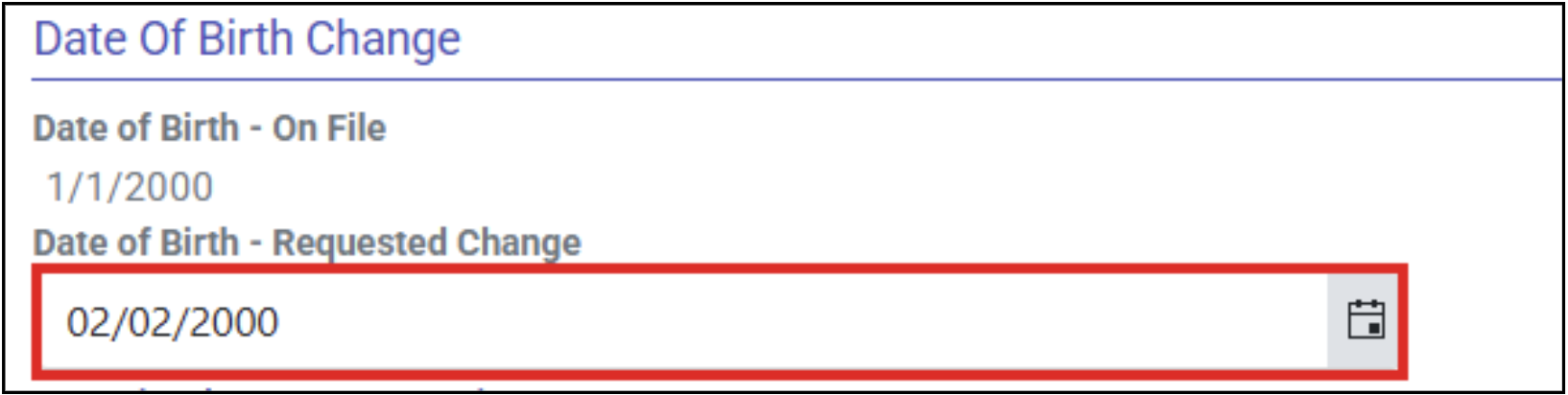
4. Type in the “Requested Change” within the box.
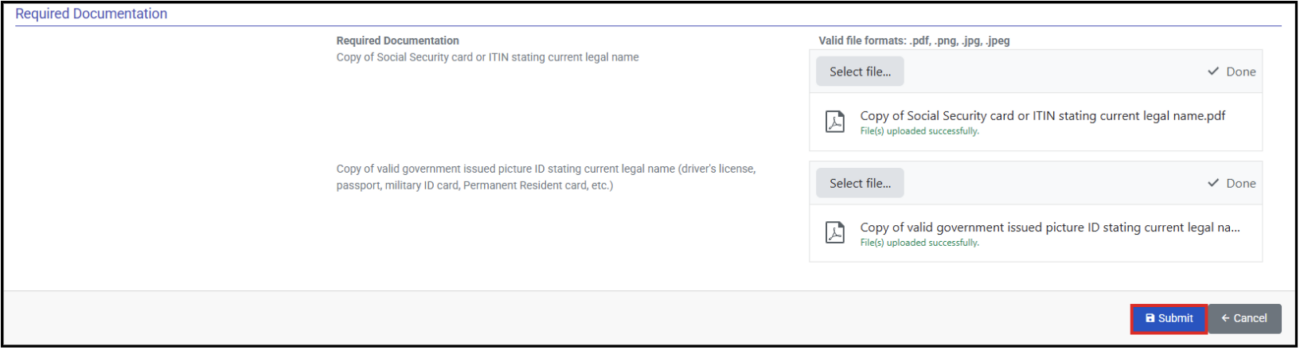
5. Upload all corresponding supporting materials in the “Required Documentation” section through either the “Select File” option, or by dragging and dropping the documentation.
-
- Copy of valid government issued picture ID stating current legal name
- (driver’s license, passport, military ID card, Permanent Resident card, etc.)
- Copy of valid government issued picture ID stating current legal name
Please Note: These documents must be in the following valid file formats: pdf, .png, .jpg, .jpeg.

6. Once all sections have been completed and all required documentation has been uploaded, you may submit your change request by selecting the blue “Submit” button in the bottom right-hand corner.
-
- If you do not complete the form in its entirety, you will receive a red banner with the error message “You have errors on your form!”. This message will list the sections that need completing.

Social Security Number (SSN) or Individual Tax Identification Number (ITIN) Change

4. Type in the “Requested Change” within the box.

5. Upload all corresponding supporting materials in the “Required Documentation” section through either the “Select File” option, or by dragging and dropping the documentation.
-
- Copy of valid government issued picture ID stating current legal name
- (driver’s license, passport, military ID card, Permanent Resident card, etc.)
- Copy of Social Security card or ITIN stating current legal name
- Copy of valid government issued picture ID stating current legal name
Please Note: These documents must be in the following valid file formats: pdf, .png, .jpg, .jpeg.

6. Once all sections have been completed and all required documentation has been uploaded, you may submit your change request by selecting the blue “Submit” button in the bottom right-hand corner.
-
- If you do not complete the form in its entirety, you will receive a red banner with the error message “You have errors on your form!”. This message will list the sections that need completing.
Processing Time and Returned Requests
The Commission processes requests to change your identity information on file in the order in which they are received, which is typically within four weeks. However, as we receive a high volume of these requests, our processing times vary. Unfortunately, there is no expedite procedure.
Once your request has been approved by Commission staff, the change will be reflected in ECS and your CTC Online account. You will also be sent an automated email notifying you that the request has been processed.
View Pending Changes
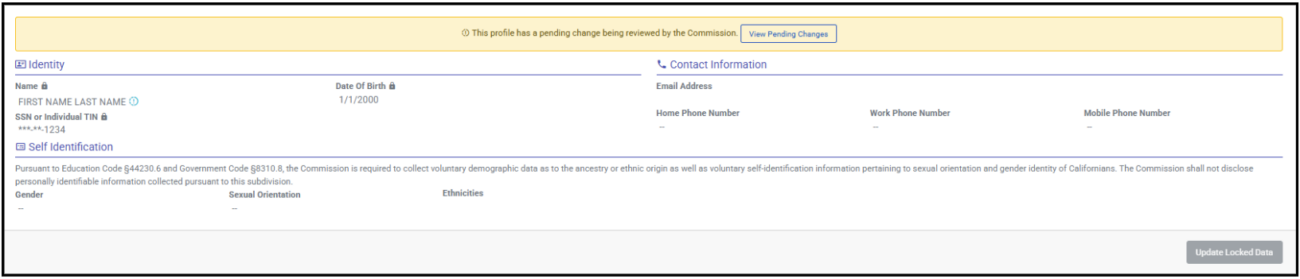
3. The change requests, status of the change request, and materials uploaded can be viewed in this window.
-
- Additionally, if this was a resubmission, you can review the Commission’s “Reason” and “Reason Explanation” for the returned request.

Submitting Additional Documentation for Identity Information Change
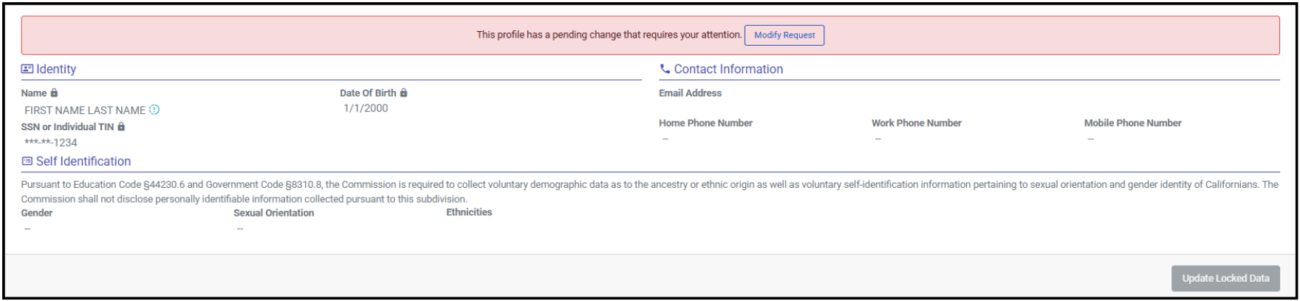


4. If needed, make corrections in section 1 to the identity information change being requested.
-
- If no correction is needed in section 1, then you may proceed to the “Documentation” section.



7. When your request is successfully submitted, you will receive the following notification:
-
- Once your resubmission is successfully processed, you will receive an email notification.

Commission on Teacher Credentialing
651 Bannon Street
Sacramento, CA 95811